How to Set Up a Phone for Seniors With Low Vision (Step-by-Step Guide)
Last Updated: February 2026
A properly set up phone can be a lifeline for seniors with low vision. It helps them stay connected, call for help, and maintain independence.
Most phones have built-in features that make screens easier to see. But many caregivers do not know these settings exist. This guide shows you exactly what to change.
Whether your loved one has macular degeneration, cataracts, or just age-related vision changes, these simple adjustments can make a huge difference.
You do not need to be tech-savvy. Just follow these step-by-step instructions. Most changes take less than 10 minutes.

Simple changes make phones easier to use
Every Phone Is Different
Settings locations vary by phone model and operating system. These instructions cover iPhone and Android basics. Check your phone's manual for exact steps.
Key Points to Remember
Start with display settings: Larger text and higher contrast make the biggest difference.
Enable voice features: Voice assistants can read screens and make calls.
Simplify the home screen: Remove clutter. Keep only essential apps visible.
Add emergency contacts: Make them easy to find with photos and large names.
Test everything together: Practice making calls and reading messages before leaving.
Write down instructions: Leave a simple cheat sheet with the phone.
Caregiver-Reviewed Setup Guide
This guide is for educational purposes only. Device settings may vary by phone model and operating system version. Always consult your phone's manual or manufacturer support for device-specific instructions.
If your loved one has severe vision loss or medical conditions affecting their ability to use technology safely, consult with an occupational therapist or low vision specialist for personalized recommendations.
Why Phone Accessibility Matters for Seniors
A phone is not just for chatting. For seniors with low vision, it is a critical safety tool. Here is why proper setup matters:
For broader strategies on supporting seniors with vision changes, explore our Hearing and Vision Support at Home guide.
Emergency Communication
Seniors need to call 911 or family quickly if they fall, feel dizzy, or have chest pain. If they cannot see the screen, they cannot get help.
Critical: Emergency contacts must be visible and easy to tap
Reducing Isolation
Seniors who cannot use their phones stop calling friends and family. This leads to loneliness and depression. An accessible phone keeps them connected.
Research shows: Social connection improves mental and physical health
Supporting Independence
When seniors can use their phone independently, they can schedule appointments, order groceries, and manage their own lives. This preserves dignity and autonomy.
Goal: Maximum independence with appropriate support
Preventing Frustration
Struggling to read tiny text or find apps causes stress and anxiety. Proper setup eliminates daily frustration and makes technology enjoyable again.
Result: Confidence and willingness to use the phone
The Good News
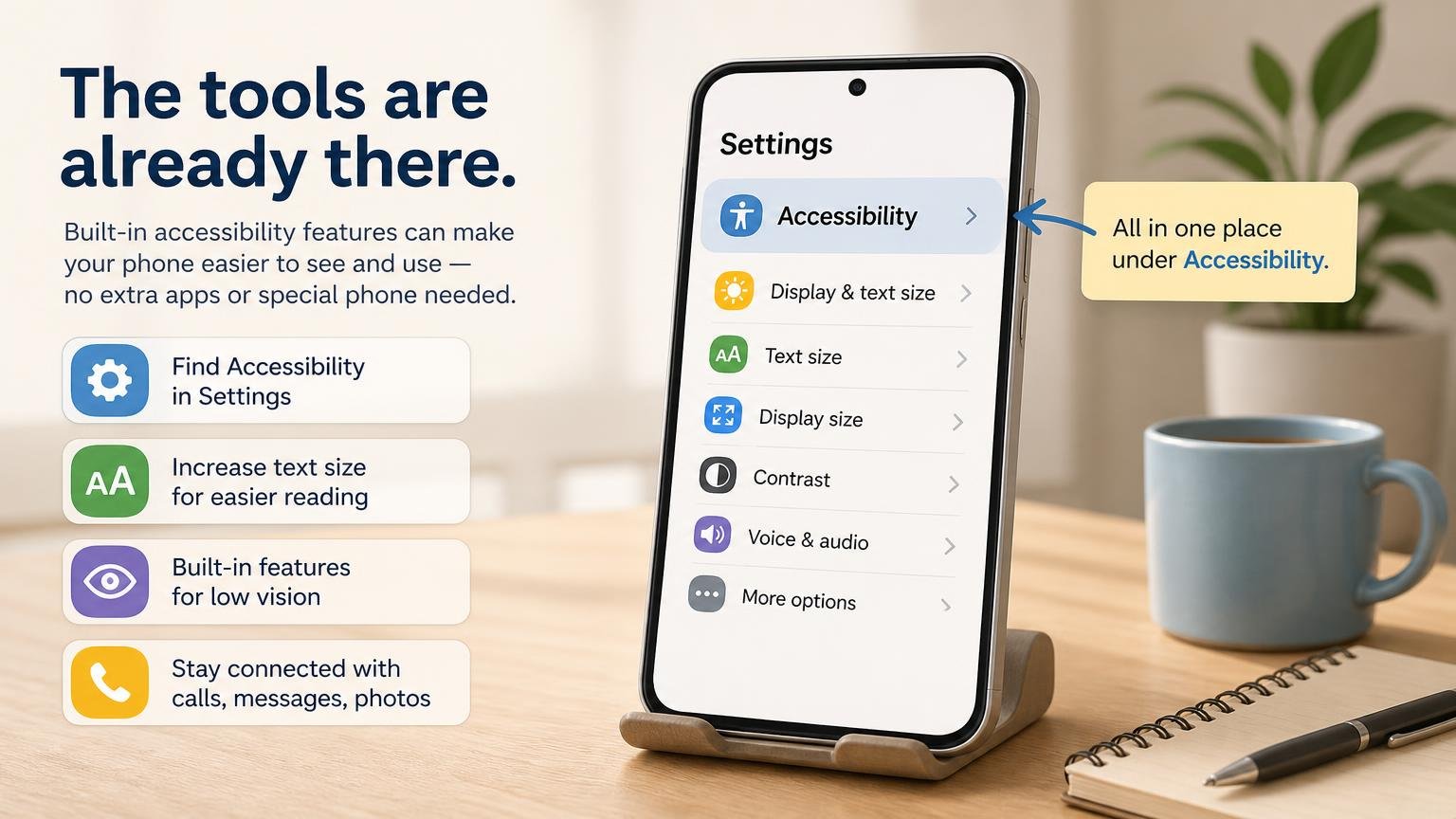
Most phones already have powerful accessibility features built in. You do not need special apps or expensive equipment. Just 10-15 minutes of setup can transform how your loved one uses their phone.
Larger text and higher contrast make phones much easier to use
Step 1: Adjust Display Settings for Low Vision
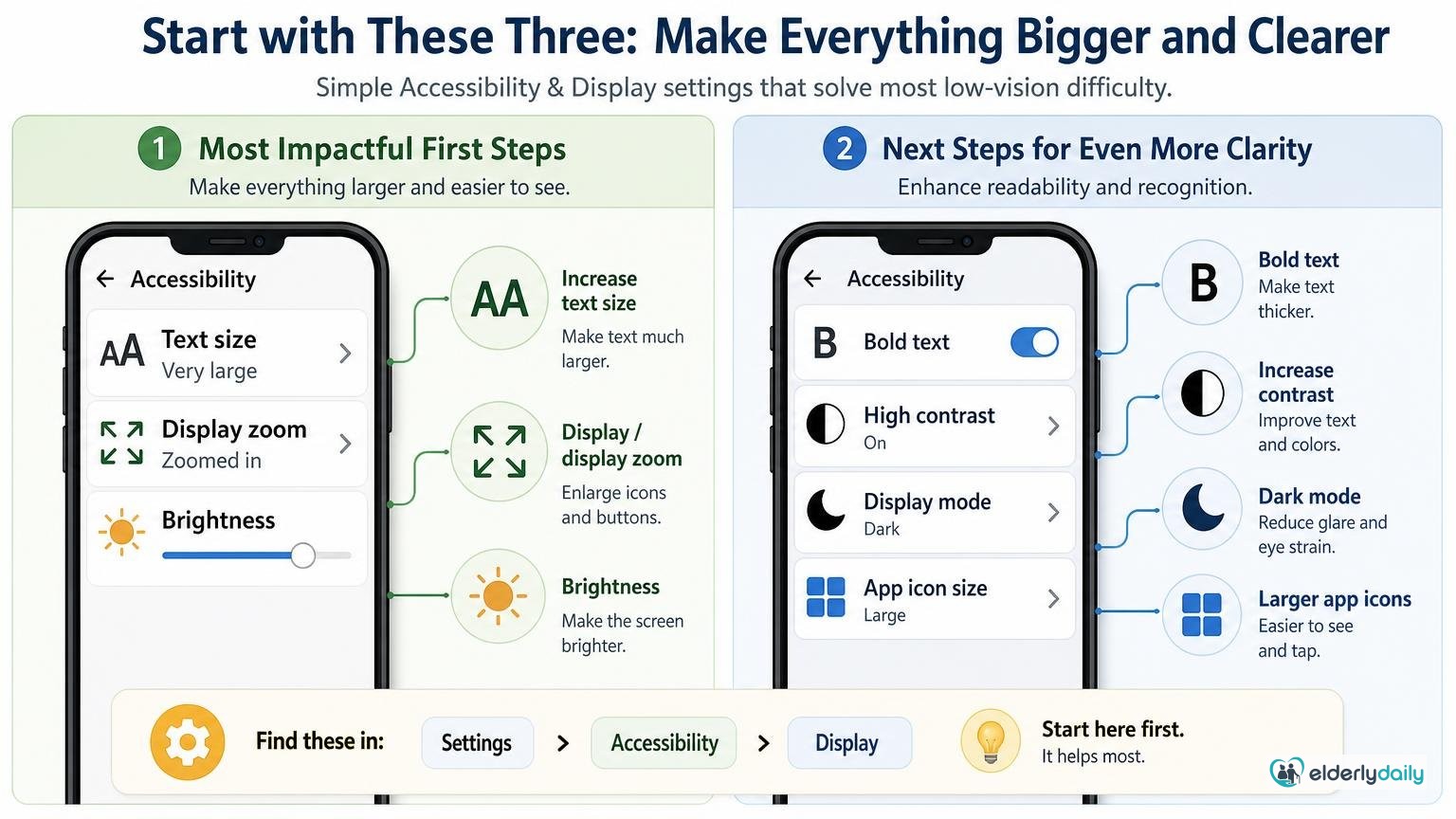
Display settings make the biggest difference. Start here first. These changes affect everything on the phone.
Increase Text Size
Larger text is the most important change you can make. It affects messages, contacts, settings, and most apps.
iPhone (iOS)
- 1. Open Settings
- 2. Tap Display & Brightness
- 3. Tap Text Size
- 4. Drag slider to the right
- 5. For even larger text, go back and tap Larger Accessibility Sizes
Android
- 1. Open Settings
- 2. Tap Display
- 3. Tap Font size and style
- 4. Drag slider to Huge or Largest
- 5. Some phones also have Display size option
Tip: Set text to the largest comfortable size. You can always make it smaller later.
Enable Bold Text
Bold text is easier to read, especially for seniors with macular degeneration or cataracts.
iPhone (iOS)
- 1. Open Settings
- 2. Tap Display & Brightness
- 3. Toggle Bold Text ON
- 4. Phone will restart
Android
- 1. Open Settings
- 2. Tap Display
- 3. Tap Font size and style
- 4. Toggle Bold font ON
Increase Contrast
Higher contrast makes text stand out from the background. This is especially helpful in bright sunlight or dim rooms.
iPhone (iOS)
- 1. Open Settings
- 2. Tap Accessibility
- 3. Tap Display & Text Size
- 4. Toggle Increase Contrast ON
- 5. Also try Reduce Transparency
Android
- 1. Open Settings
- 2. Tap Accessibility
- 3. Tap Visibility enhancements
- 4. Toggle High contrast fonts ON
- 5. Try Color correction if needed
Adjust Brightness
Proper brightness reduces eye strain. Too dim is hard to see. Too bright causes glare.
Both iPhone and Android:
- Swipe down from top of screen to access quick settings
- Drag brightness slider to 75-85% for indoor use
- Turn OFF auto-brightness if it changes too much
- Increase brightness to maximum for outdoor use
Consider Dark Mode (Optional)
Dark mode uses white text on black backgrounds. Some seniors find this easier to read. Others prefer traditional light mode. Try both.
Dark Mode Helps If:
- • Bright screens cause eye pain
- • Glare is a problem
- • Using phone at night
- • Light sensitivity exists
Light Mode Better If:
- • Macular degeneration present
- • Cataracts affect vision
- • Using phone in bright rooms
- • Prefers traditional look
Test both modes: Let your loved one try each for a day and choose their preference.
Before and After
Without These Changes:
- • Text is tiny and hard to read
- • Squinting causes headaches
- • Mistakes when dialing
- • Frustration and giving up
With These Changes:
- • Text is clear and readable
- • Less eye strain
- • Confident phone use
- • Independence maintained
Step 2: Enable Accessibility Features
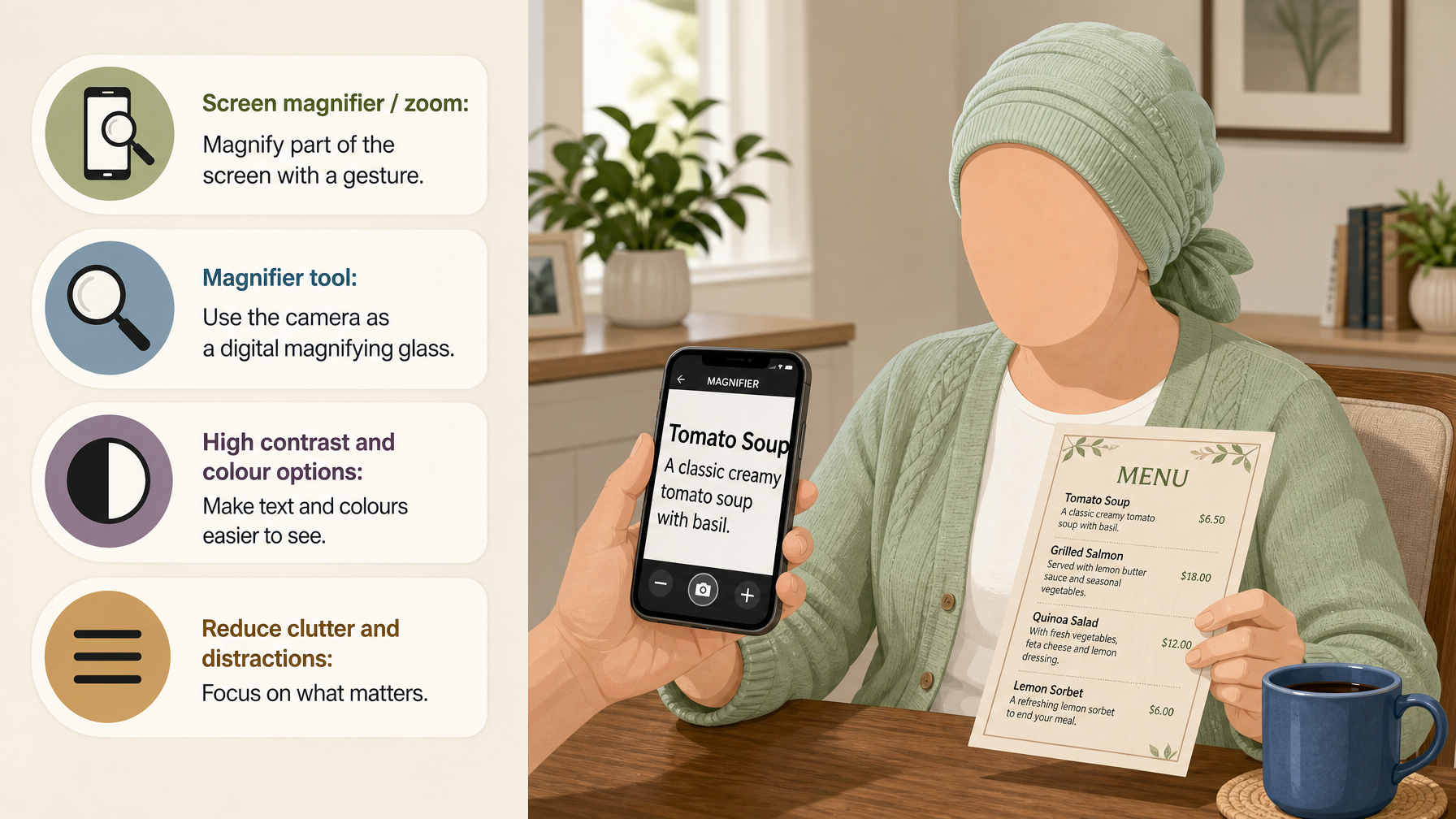
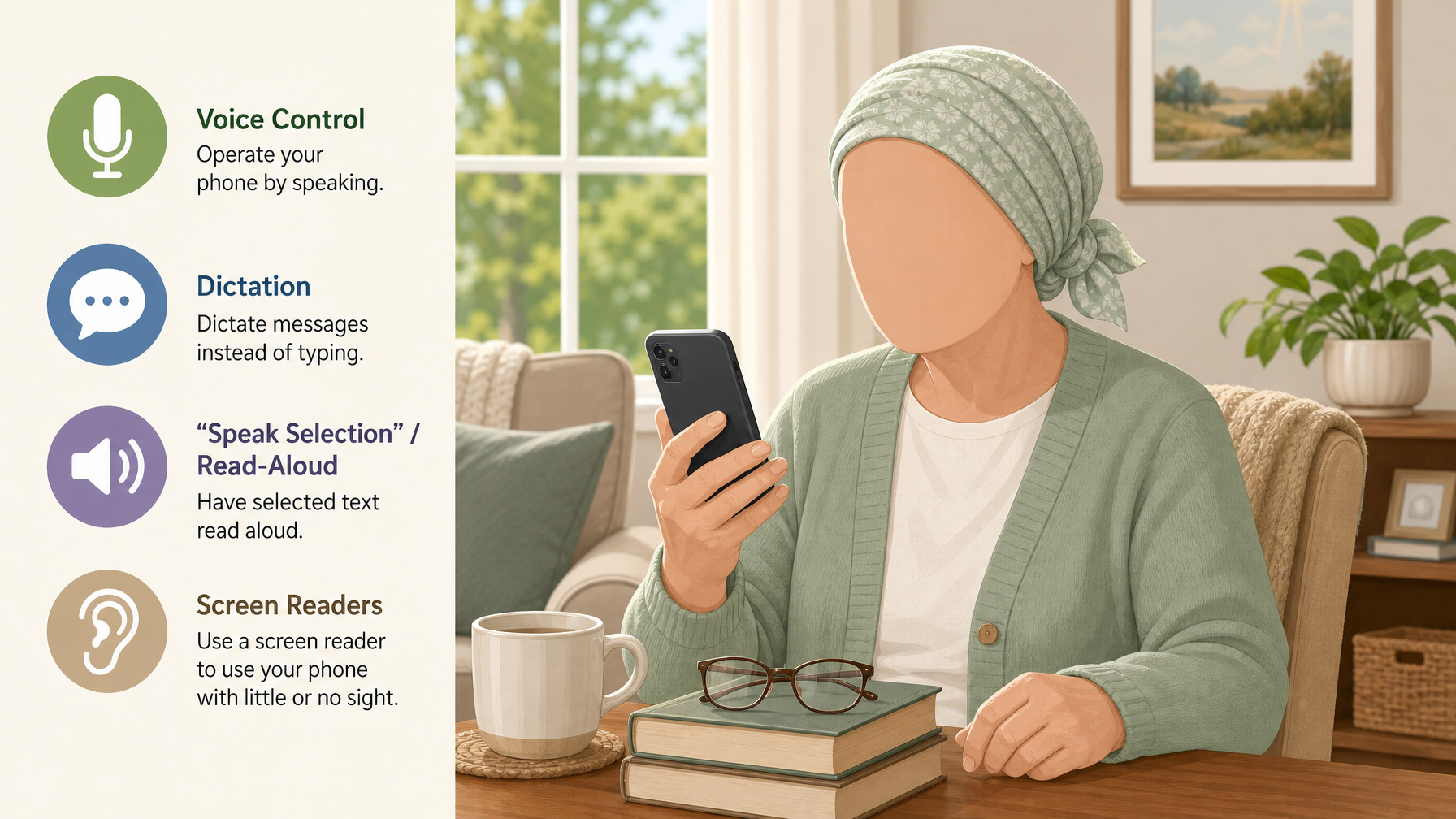
Accessibility features go beyond basic display settings. They can read screens aloud, magnify specific areas, and make typing easier.
Screen Magnifier
The magnifier lets you zoom in on any part of the screen. It is like holding a magnifying glass over the phone.
iPhone (iOS)
- 1. Open Settings
- 2. Tap Accessibility
- 3. Tap Zoom
- 4. Toggle Zoom ON
- 5. Choose Full Screen Zoom or Window Zoom
To use: Double-tap with 3 fingers to zoom in/out
Android
- 1. Open Settings
- 2. Tap Accessibility
- 3. Tap Magnification
- 4. Toggle Magnification shortcut ON
- 5. Choose tap or button activation
To use: Tap accessibility button or triple-tap screen
Voice Assistant (Siri / Google Assistant)
Voice assistants can make calls, send messages, and read screens aloud. This is powerful for seniors who struggle to see small text.
iPhone (Siri)
- 1. Open Settings
- 2. Tap Siri & Search
- 3. Toggle Listen for "Hey Siri" ON
- 4. Toggle Press Side Button for Siri ON
- 5. Follow voice training prompts
To use: Say "Hey Siri, call [name]" or press side button
Android (Google Assistant)
- 1. Open Settings
- 2. Tap Google
- 3. Tap Search, Assistant & Voice
- 4. Tap Google Assistant
- 5. Toggle Hey Google ON
To use: Say "Hey Google, call [name]" or long-press home button
Useful Voice Commands:
- • "Call [contact name]"
- • "Text [name] I'm okay"
- • "What time is it?"
- • "Read my messages"
- • "Set alarm for 8 AM"
- • "What's the weather?"
- • "Call 911" (emergency)
- • "Turn up brightness"
Text-to-Speech (Screen Reader)
Screen readers speak everything on the screen. This is essential for seniors with severe vision loss.
iPhone (VoiceOver)
- 1. Open Settings
- 2. Tap Accessibility
- 3. Tap VoiceOver
- 4. Toggle VoiceOver ON
- 5. Adjust speaking rate
Warning: VoiceOver changes how you tap. Practice together first.
Android (TalkBack)
- 1. Open Settings
- 2. Tap Accessibility
- 3. Tap TalkBack
- 4. Toggle Use TalkBack ON
- 5. Complete tutorial
Warning: TalkBack requires double-tapping. Practice together first.
Easier option: Try "Speak Selection" (iPhone) or "Select to Speak" (Android) first. These read only selected text, not everything.
Large Keyboard Mode
Bigger keys mean fewer typing mistakes. This makes texting and searching much easier.
How to Enable:
- iPhone: Larger text settings automatically increase keyboard size
- Android: Open keyboard app (Gboard) → Settings → Preferences → Keyboard height → Tall or Extra-tall
- Both: Enable key borders for better visibility
- Alternative: Use voice typing instead of keyboard
Most Helpful Features
You do not need to enable everything. Start with these three:
1. Larger Text
Makes everything readable
2. Voice Assistant
Hands-free calling
3. Screen Magnifier
Zoom when needed
Voice assistants can read screens and make calls hands-free
Step 3: Simplify the Home Screen
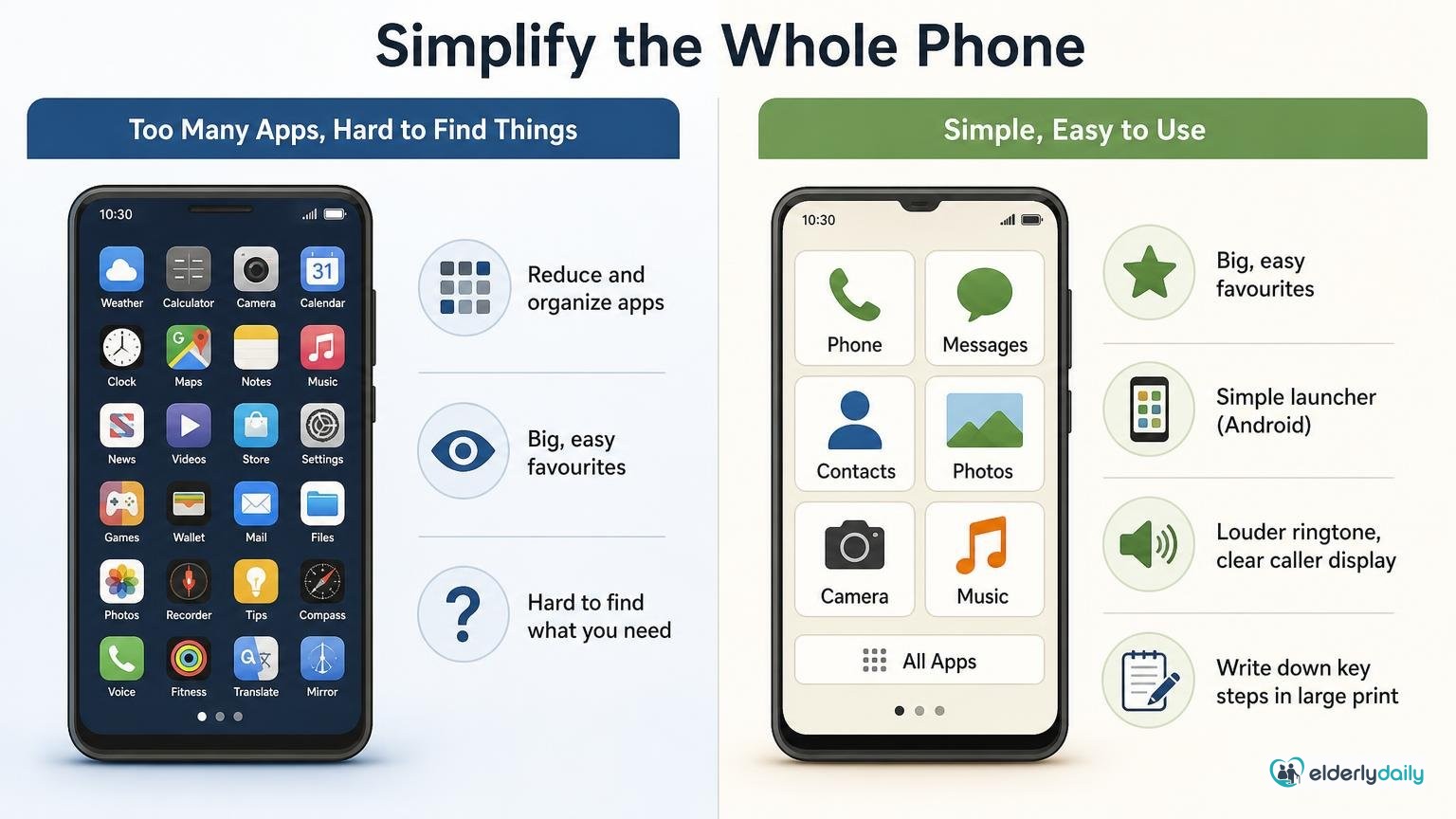
A cluttered home screen is overwhelming. Remove apps your loved one does not use. Keep only the essentials visible and easy to find.
Remove Unnecessary Apps
Most phones come with dozens of pre-installed apps. Delete or hide apps your loved one will never use.
Apps to Keep:
- Phone (calls)
- Messages (texts)
- Contacts
- Camera
- Video calling (FaceTime/Duo)
- Settings
- Calendar (if used)
- Browser (if needed)
How to Remove Apps:
iPhone:
- 1. Long-press app icon
- 2. Tap Remove App
- 3. Choose Delete or Remove from Home Screen
Android:
- 1. Long-press app icon
- 2. Drag to Remove or Uninstall
- 3. Confirm deletion
Add Emergency Contacts to Home Screen
Create shortcuts for the most important people. One tap should dial their number.
iPhone (Contact Shortcuts):
- 1. Open Shortcuts app
- 2. Tap + to create new shortcut
- 3. Search for "Call" action
- 4. Select contact to call
- 5. Tap icon to customize name and image
- 6. Tap Add to Home Screen
Android (Contact Widgets):
- 1. Long-press empty space on home screen
- 2. Tap Widgets
- 3. Find Contacts widget
- 4. Drag Direct Dial widget to home screen
- 5. Select contact when prompted
Use Photo-Based Contacts
Photos are easier to recognize than names. Add clear, recent photos to all important contacts.
How to Add Photos:
- 1.Open Contacts app
- 2.Tap contact name
- 3.Tap Edit
- 4.Tap Add Photo or camera icon
- 5.Choose photo from gallery or take new one
- 6.Adjust photo to show face clearly
- 7.Tap Done or Save
Best practice: Use close-up face photos with good lighting. Avoid group photos or distant shots.
Increase Icon Size
Larger icons are easier to see and tap. This reduces mistakes and frustration.
iPhone:
iPhone does not have direct icon size control, but larger text settings make app names bigger and easier to read.
Alternative: Use fewer apps per screen to create more spacing.
Android:
- 1. Open Settings
- 2. Tap Display
- 3. Tap Display size
- 4. Drag slider to Largest
Ideal Home Screen Layout
Organize the home screen so the most important apps are in the same place every time:
Top Row (Most Important):
- • Phone (calls)
- • Messages (texts)
- • Emergency contact shortcut
Second Row:
- • Contacts
- • Video calling app
- • Camera
Bottom Dock (Always Visible):
- • Phone
- • Messages
- • Contacts
- • Settings
Everything Else:
- • Move to second screen
- • Or hide in app library
- • Keep first screen simple
Step 4: Improve Call Visibility and Sound
Missing calls is frustrating and potentially dangerous. Make sure your loved one can see and hear when someone calls.
Increase Ringtone Volume
Many seniors miss calls because the ringtone is too quiet. Set volume to maximum.
How to Adjust:
- Use volume buttons: Press volume UP button on side of phone
- Check settings: Settings → Sounds → Ringer and Alerts → Drag to maximum
- Choose loud ringtone: Pick a clear, loud ringtone (avoid soft music)
- Test it: Call the phone from another device to verify volume
Enable Flash Alerts
The camera flash blinks when calls or messages arrive. This visual alert helps seniors who cannot hear the ringtone or see the screen.
iPhone
- 1. Open Settings
- 2. Tap Accessibility
- 3. Tap Audio/Visual
- 4. Toggle LED Flash for Alerts ON
- 5. Toggle Flash on Silent ON (optional)
Android
- 1. Open Settings
- 2. Tap Accessibility
- 3. Tap Hearing enhancements
- 4. Toggle Flash notification ON
- 5. Choose when to flash
Set Vibration Alerts
Vibration provides another way to notice calls. This is helpful if the phone is in a pocket or purse.
Both iPhone and Android:
- Settings → Sounds → Vibrate on Ring → ON
- Settings → Sounds → Vibrate on Silent → ON
- Choose strong vibration pattern
Use Hearing Aid Compatibility
If your loved one wears hearing aids, enable compatibility mode for clearer calls. For more information on hearing support, see our Best Hearing Aids for Elderly guide.
How to Enable:
- iPhone: Settings → Accessibility → Hearing Devices → Toggle Hearing Aid Mode ON
- Android: Settings → Accessibility → Hearing enhancements → Toggle Hearing aid support ON
- Bluetooth pairing: Many modern hearing aids connect directly to phones
Note: Ask audiologist about phone compatibility when getting hearing aids.
Video calls help seniors stay connected with family
Complete Setup Walkthrough
Follow this order for best results. Each step builds on the previous one.
Start with Display Settings
Increase text size, enable bold text, adjust brightness. These changes affect everything else.
Enable Voice Assistant
Set up Siri or Google Assistant. Practice basic commands together like "Call [name]" and "What time is it?"
Clean Up Home Screen
Remove unused apps. Keep only Phone, Messages, Contacts, and 2-3 others on the first screen.
Add Photos to Contacts
Add clear face photos to all important contacts. Use recent photos with good lighting.
Create Emergency Contact Shortcuts
Add one-tap shortcuts for family members and 911. Place them on the home screen.
Enable Flash and Vibration Alerts
Turn on LED flash for calls and strong vibration. Test by calling the phone.
Set Up Emergency SOS
Configure emergency features so your loved one can call for help quickly.
Practice Together
Make test calls, send practice texts, try voice commands. Do not leave until they feel comfortable.
Write Simple Instructions
Leave a cheat sheet with the phone. Include how to answer calls, make calls, and use voice commands.
Total Setup Time
45-50 minutes total. You can split this across multiple sessions if needed. The most important steps (1-3) take only 15 minutes.
Real Caregiver Stories
These real experiences show how proper phone setup changes lives:
Sarah, 68 - Macular Degeneration
"My mom stopped calling me because she could not see her phone. I increased the text size to maximum and added my photo to her contacts. Now she calls me every morning. She even texts her grandkids. The phone went from frustrating to empowering."
What helped: Maximum text size + photo contacts + voice assistant
Michael, 72 - Cataracts
"I tried to help my dad with his smartphone, but he kept calling the wrong people. I switched him to a large button phone with physical keys. He can feel the buttons and dial without looking. It was the right choice for him."
What helped: Switching to a simpler device designed for low vision
Jennifer, 65 - Diabetic Retinopathy
"My husband's vision got worse after his diabetes diagnosis. I set up voice commands on his phone. Now he just says 'Hey Siri, call Jennifer' and it works. He also uses voice typing for texts. Technology finally works for him instead of against him."
What helped: Voice assistant + voice typing + emergency SOS setup
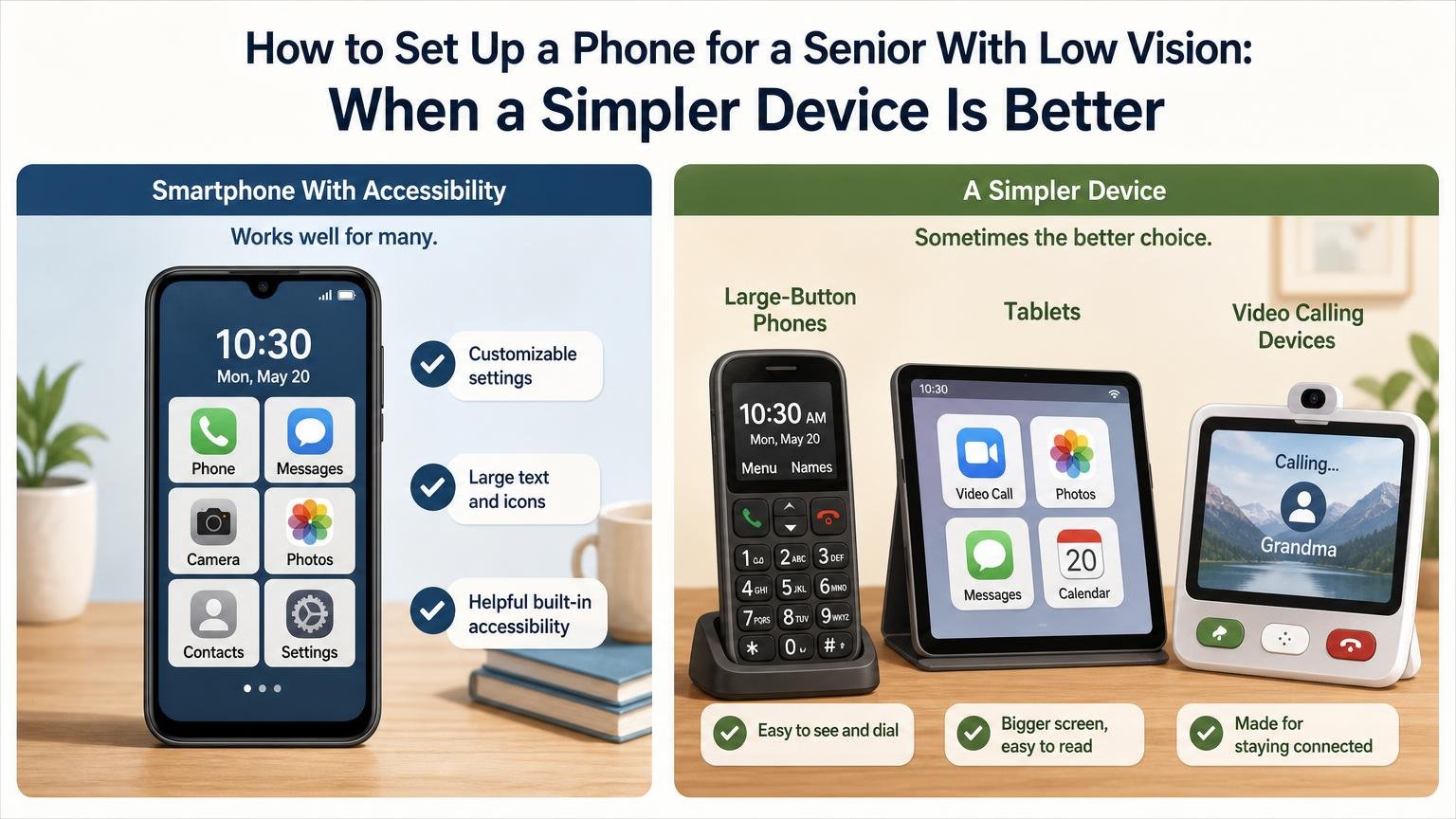
Devices Designed for Low Vision
Sometimes standard smartphones are not enough. These specialized devices are built specifically for seniors with vision challenges.

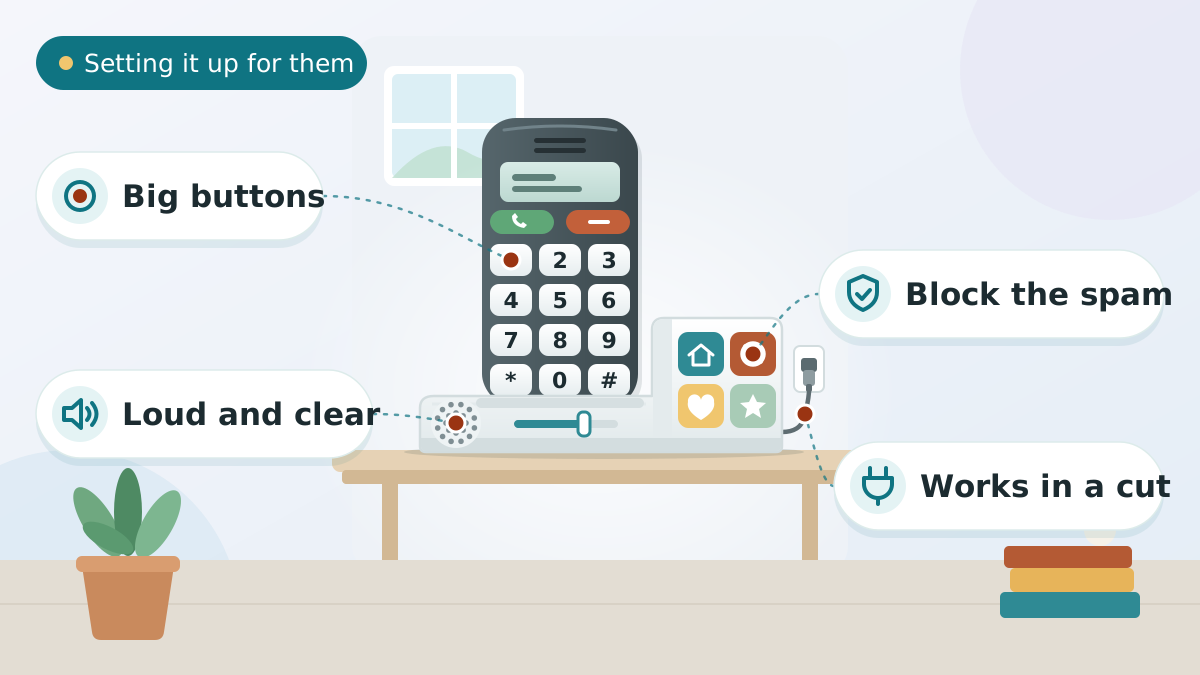
Large Button Phones
Physical buttons you can feel. Extra-large numbers. Simple interface with no apps to confuse.
Tablets with Large Displays
10-inch or larger screens make everything easier to see. Better for video calls and reading messages.
Video Calling Devices
Purpose-built devices for video calls. Family can call them directly. No complicated setup needed.
Which Device Is Right?
Choose Large Button Phone If:
- • Severe vision loss
- • Prefers physical buttons
- • Only needs calls and texts
- • Overwhelmed by smartphones
Choose Tablet If:
- • Wants video calls
- • Needs larger screen
- • Uses at home mostly
- • Comfortable with touchscreens
Step 5: Enable Safety Settings
Safety features can save lives. Set these up even if your loved one lives with family. For additional safety tools, explore our Best Medical Alert Devices guide.
Emergency SOS
Emergency SOS lets seniors call 911 quickly by pressing buttons. It also alerts emergency contacts automatically.
iPhone
- 1. Open Settings
- 2. Tap Emergency SOS
- 3. Toggle Call with Hold ON
- 4. Add emergency contacts
- 5. Enable Auto Call if appropriate
To use: Press and hold side button + volume button
Android
- 1. Open Settings
- 2. Tap Safety & emergency
- 3. Tap Emergency SOS
- 4. Toggle Use Emergency SOS ON
- 5. Add emergency contacts
To use: Press power button 5 times quickly
Important: Practice this feature together so they know how to use it in an emergency.
Medical ID
Medical ID shows critical health information on the lock screen. Paramedics can see it without unlocking the phone.
What to Include:
- • Full name and date of birth
- • Medical conditions
- • Allergies
- • Current medications
- • Blood type (if known)
- • Emergency contacts
- • Primary doctor name
- • Do Not Resuscitate status (if applicable)
iPhone:
- 1. Open Health app
- 2. Tap profile icon
- 3. Tap Medical ID
- 4. Tap Edit
- 5. Fill in information
- 6. Toggle Show When Locked ON
Android:
- 1. Open Settings
- 2. Tap Safety & emergency
- 3. Tap Medical information
- 4. Fill in details
- 5. Toggle Show on lock screen ON
Location Sharing (Optional)
Location sharing lets family see where your loved one is. This is helpful for seniors who wander or live alone.
When Location Sharing Helps:
- • Senior lives alone
- • History of getting lost
- • Dementia or memory issues
- • Family wants peace of mind
How to Enable:
iPhone: Settings → Privacy & Security → Location Services → Share My Location → Share with family members
Android: Google Maps → Profile → Location sharing → Share location → Select contacts
Privacy note: Discuss this with your loved one first. Respect their autonomy and privacy.
Scam Call Filtering
Seniors are targeted by phone scams. Enable call filtering to block suspicious numbers.
iPhone:
- 1. Open Settings
- 2. Tap Phone
- 3. Toggle Silence Unknown Callers ON
- 4. Unknown numbers go to voicemail
Android:
- 1. Open Phone app
- 2. Tap three dots menu
- 3. Tap Settings
- 4. Tap Caller ID & spam
- 5. Toggle Filter spam calls ON
Warning: This blocks ALL unknown numbers. Make sure important contacts are saved first.
Common Setup Mistakes to Avoid
Many caregivers make these mistakes when setting up phones. Learn what to avoid:
Mistake: Making Too Many Changes at Once
Why it's risky: Overwhelming your loved one with too many new features causes confusion and resistance.
What to do instead: Change 2-3 settings per session. Let them practice before adding more features.
Mistake: Not Testing Together
Why it's risky: Settings that look good to you might not work for their vision. They need to try it themselves.
What to do instead: Make a test call, send a practice text, and try voice commands together before leaving.
Mistake: Forgetting to Write Instructions
Why it's risky: Seniors forget new steps quickly. Without written instructions, they will call you repeatedly or stop using the phone.
What to do instead: Write simple step-by-step instructions in large print. Keep them with the phone.
Mistake: Enabling VoiceOver/TalkBack Without Training
Why it's risky: Screen readers completely change how phones work. Turning them on without explanation causes panic.
What to do instead: Only enable screen readers if vision loss is severe. Practice together for at least 30 minutes first.
Mistake: Not Adding Photos to Contacts
Why it's risky: Names are hard to read. Photos are instantly recognizable. Without photos, seniors struggle to find the right contact.
What to do instead: Add clear face photos to all important contacts. Use recent photos with good lighting.
Setup Success Checklist
Before you finish, verify these items:
When to Consider a Simpler Device
Sometimes even with all these adjustments, a smartphone is still too complicated. Here are signs a simpler device might be better. For more guidance on recognizing cognitive changes, see our Signs Dementia Is Getting Worse guide.
Warning Signs
Repeated Frustration
Gets upset or gives up when trying to use phone
Cannot Remember Steps
Forgets how to answer calls or find contacts
Accidentally Calls 911
Taps wrong buttons frequently
Vision Worsening
Even maximum text size is too small
Stops Using Phone
Avoids phone because it is too hard
Better Options
Large Button Phone
Physical buttons, simple interface, no apps
Flip Phone
Easy to answer, hard to pocket-dial
Tablet for Home Use
Much larger screen, easier to see
Video Calling Device
One-touch calling, auto-answer option
Medical Alert Device
Wearable emergency button
How to Decide
Ask yourself these questions:
Keep Smartphone If:
- • Can learn new steps with practice
- • Wants video calling
- • Uses apps occasionally
- • Comfortable with touchscreens
- • Vision loss is mild to moderate
Switch to Simple Device If:
- • Constantly confused by phone
- • Only needs calls and texts
- • Prefers physical buttons
- • Memory issues present
- • Vision loss is severe
More Helpful Guides
Learn more ways to support seniors with vision and hearing needs:
Frequently Asked Questions
Medical Disclaimer
This guide is for educational purposes only. It is not a substitute for professional medical advice, diagnosis, or treatment of vision conditions.
Device settings and features vary by phone model, operating system version, and manufacturer. Always consult your device's user manual or manufacturer support for device-specific instructions.
If your loved one has severe vision loss, progressive eye disease, or medical conditions affecting their ability to use technology safely, consult with:
- Ophthalmologist or optometrist for vision assessment
- Low vision specialist for assistive technology recommendations
- Occupational therapist for adaptive equipment training
- Primary care physician for overall health management
Always respect your loved one's autonomy and privacy when configuring phone settings, especially location sharing and emergency features. Discuss changes with them and obtain their consent.
Need More Vision Support?
Explore our complete guide to helping seniors with vision and hearing changes