
4 Best Tablets for Seniors with Low Vision
 By Kutubuddin, Founder & Senior Care Researcher Updated October 2026
In this guide
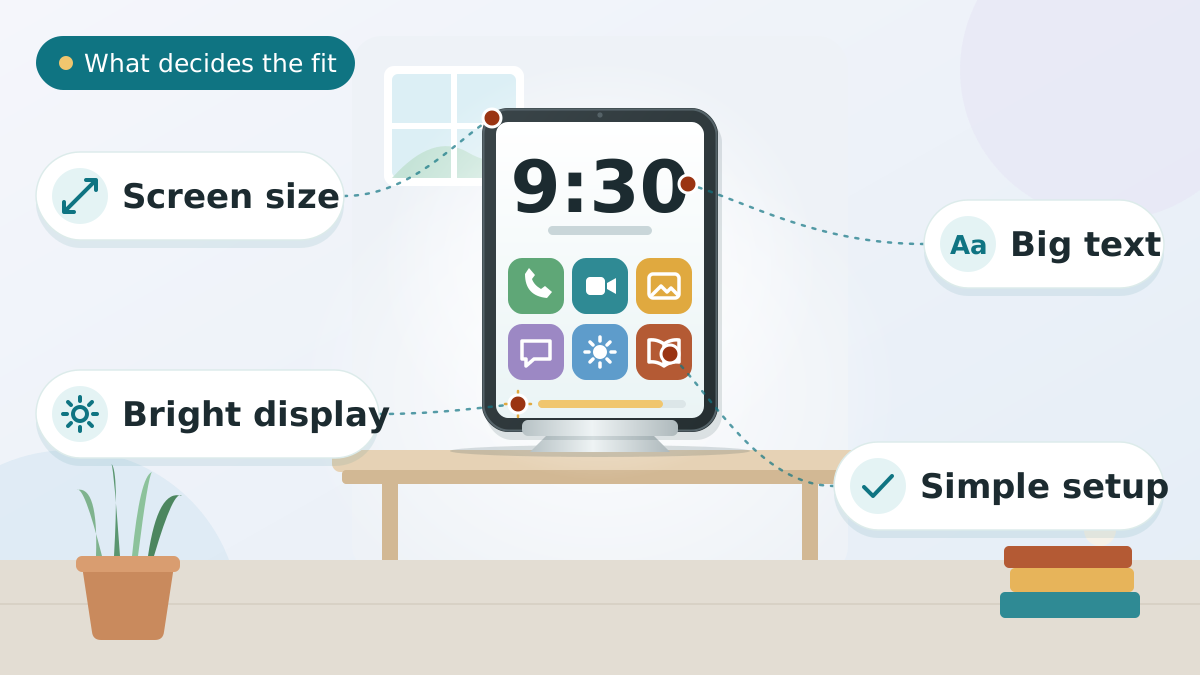
The best tablet for a senior with low vision isn't the most powerful one — it's the one with the biggest, clearest screen and the simplest way in. We weighed display size, contrast, built-in magnification, and how little setup each one needs. Our picks run from the budget Amazon Fire HD 10 to the large-screen iPad Air, matched to how much vision loss you're working around.
We may earn a commission when you buy through links on this page. Read our affiliate disclosure.

Our Top Pick
Apple iPad 11-inch (A16, 128GB, Wi-Fi)
Apple's accessibility tools — VoiceOver, Zoom, the camera Magnifier for reading labels and menus, Larger Text, and color filters — are the most polished and consistent in the category, which is what spares a senior new to tablets a lot of frustration.
- 11-inch Liquid Retina display
- VoiceOver screen reader
- Zoom screen magnification
- Camera Magnifier for reading labels and menus
- Larger Text and color filters
- A16 chip, 128GB storage, Wi-Fi 6
Top 4 Picks — Find Your Situation
- Apple iPad 11-inch (A16, 128GB, Wi-Fi)Best Overall
Best forSeniors new to tablets who want the most polished accessibility tools, set up once and left alone
- Most polished, consistent accessibility tools in the category
- Sharp, bright Liquid Retina screen
- Long software support, so it stays usable for years
Watch out: Costs more than an Android or Fire tablet
 Apple iPad Air 13" (M2)Best for Severe Low Vision
Best forSeniors with significant vision loss who want the largest, crispest Apple screen
- Largest, crispest screen for magnified text
- Laminated display cuts glare and shadow
- Full Apple accessibility suite
Watch out: M2 is a generation behind the newest Airs (no impact on accessibility)
 Samsung Galaxy Tab S10 FEBest Android
Best forGoogle/Samsung households wanting the strongest Android tablet, with stylus support
- Strongest Android option for the low-vision basics
- Smooth 90 Hz screen
- Included S Pen helps shaky hands
Watch out: Standard LCD, not AMOLED — the iPad Air has a brighter, higher-contrast screen
 Amazon Fire HD 10Best Budget
Best forA first tablet or a tight budget — a large screen at the lowest price
- Cheapest large-screen option
- Easy Alexa hands-free voice control
- Solid first tablet on a tight budget
Watch out: More basic accessibility than iPad or Samsung
Apple iPad 11-inch (A16, 128GB, Wi-Fi)
Seniors new to tablets who want the most polished accessibility tools, set up once and left alone
For a senior with poor vision, the screen matters less than the software around it — and Apple's accessibility tools are the most polished and consistent in the category. VoiceOver, system-wide Zoom, the camera Magnifier for reading labels and menus, Larger Text, and color filters work the same way everywhere, which is exactly what spares someone new to tablets the frustration that makes people give up.
Buying it Renewed is the smart-money move: a certified unit that's inspected and tested, typically backed by Amazon's 90-day Renewed Guarantee, at a lower price than new. The sharp, bright Liquid Retina screen then handles reading, email, and video calls with ease.
What we love
- Most polished, consistent accessibility tools in the category
- Sharp, bright Liquid Retina screen
- Long software support, so it stays usable for years
Things to consider
- Costs more than an Android or Fire tablet
- Setup is easiest with someone who already uses Apple devices
Right for you if
- ✓Low vision is the main challenge and accessibility quality is the priority
- ✓The user is new to tablets and needs things to 'just work'
- ✓You want flagship capability at a lower, Renewed price
Maybe skip it if
- !You want a factory-sealed unit as a gift
- !Maximum battery lifespan matters more than the saving
- !You specifically want the largest possible screen
What owners consistently report
Common praise
- +The accessibility features are consistent and genuinely usable
- +The screen is sharp and bright enough for tired eyes
- +Renewed pricing makes a premium tablet realistic
Common gripes
- –Renewed isn't factory-sealed, so it's a weaker gift presentation
- –Battery lifespan may be a little shorter than a brand-new unit
- –Confirm the seller and the Renewed Guarantee terms before buying
Getting started
- →Turn on Larger Text and Zoom during first setup, before handing it over
- →Add the Magnifier to the Control Center for one-tap label reading
- →Set up a familiar contact for video calls so it's ready to use
How it compares to our runner-up
Our runner-up, the Apple iPad Air 13-inch (M2), is the same polished accessibility on a noticeably larger canvas — more room for big text and easier video calls — at a higher, new-unit price. Choose the 11-inch Renewed iPad when value and the most polished accessibility are the priority; choose the 13-inch Air when a bigger screen is worth paying more for.
How we picked
We compared 4 options. These tablets were ranked on screen size and brightness, text-scaling and accessibility features, interface simplicity, ease of video calling, and battery life. We drew on manufacturer specs, verified owner reviews, and accessibility guidance, not thorough research. Display size and built-in vision settings matter most — match them to the user's eyesight, and consider a simplified senior interface where standard menus cause confusion.
Reviewed by Kutubuddin — who researches senior-care products and the real-world needs of caregivers and older adults.
Our picks, reviewed
Apple iPad 11-inch (A16, 128GB, Wi-Fi)
Apple's accessibility tools — VoiceOver, Zoom, the camera Magnifier for reading labels and menus, Larger Text, and color filters — are the most polished and consistent in the category, which is what spares a senior new to tablets a lot of frustration. The sharp, bright Liquid Retina display handles reading, email and video calls with ease, and 128GB is more than enough for a tablet used this way: photos, video calls, a few apps and some reading. Paying up for more storage buys space this reader will never reach.
What we like
- Most polished, consistent accessibility tools in the category
- Sharp, bright Liquid Retina screen
- Long software support, so it stays usable for years
Keep in mind
- Costs more than an Android or Fire tablet
- Setup is easiest with someone who already uses Apple devices
Key features
- 11-inch Liquid Retina display
- VoiceOver screen reader
- Zoom screen magnification
- Camera Magnifier for reading labels and menus
- Larger Text and color filters
- A16 chip, 128GB storage, Wi-Fi 6
Apple iPad Air 13" (M2)
The one to choose when vision loss is significant. The big 13-inch laminated Liquid Retina display sits the image right under the glass — less glare, no air-gap shadow — so magnified text stays crisp, and the larger canvas means bigger fonts with less scrolling. It runs the same top-tier accessibility suite as the iPad above; the M2 chip is a generation behind the newest Airs but makes zero difference to those features and usually costs less.
What we like
- Largest, crispest screen for magnified text
- Laminated display cuts glare and shadow
- Full Apple accessibility suite
- Usually costs less than the newest Air
Keep in mind
- M2 is a generation behind the newest Airs (no impact on accessibility)
- Premium price
Key features
- 13-inch laminated Liquid Retina display
- Laminated screen — less glare, no air-gap shadow
- Same accessibility suite as iPad (VoiceOver, Zoom, Magnifier)
- Larger canvas — bigger fonts, less scrolling
- Apple M2 chip
Samsung Galaxy Tab S10 FE
The strongest Android option here for a Google/Samsung household. The 10.9-inch screen runs a smooth 90 Hz, an S Pen is included (useful for steadier tapping with shaky hands), and IP68 means spills aren't fatal. Android's TalkBack reader, font scaling, high-contrast text, and screen magnification cover the low-vision basics well. It's a standard-size LCD rather than a large or AMOLED panel, so for the brightest, highest-contrast screen the iPad Air above still leads.
What we like
- Strongest Android option for the low-vision basics
- Smooth 90 Hz screen
- Included S Pen helps shaky hands
- IP68 — survives spills
Keep in mind
- Standard LCD, not AMOLED — the iPad Air has a brighter, higher-contrast screen
Key features
- 10.9-inch display at a smooth 90 Hz
- S Pen included — steadier tapping for shaky hands
- IP68 water resistance
- TalkBack screen reader
- Font scaling and high-contrast text
- Screen magnification
Amazon Fire HD 10
The cheapest credible way to put a large 10.1-inch tablet in someone's hands — VoiceView screen reader, Screen Magnifier, large-text settings, and easy Alexa voice control for hands-free reminders and calls. Accessibility is more basic than iPad or Samsung and it's tied to Amazon's app store, but for a first tablet or a tight budget it's hard to beat, and it's Amazon's own hardware.
What we like
- Cheapest large-screen option
- Easy Alexa hands-free voice control
- Solid first tablet on a tight budget
Keep in mind
- More basic accessibility than iPad or Samsung
- Tied to Amazon's app store
Key features
- 10.1-inch display
- VoiceView screen reader
- Screen Magnifier
- Large-text settings
- Alexa voice control for hands-free reminders and calls
What to look for
Screen size — and how it'll be held
For low vision, a bigger screen almost always wins: it fits larger text with less scrolling and makes faces on a video call easier to see. Aim for at least 10 inches, and step up to the 13-inch iPad Air when vision loss is significant.
The trade-off is weight. A 13-inch tablet is heavier to hold for long stretches, so if the user reads in bed or for long periods, plan on a stand or a propped position rather than holding it the whole time.
Built-in magnification and text scaling
This is the feature that actually decides whether a tablet works for low vision, and it's where the platforms differ most:
- Apple (iPad): VoiceOver reads the screen aloud, Zoom magnifies any part of it, the camera Magnifier turns the tablet into a digital magnifying glass for labels and menus, and Larger Text plus color filters sharpen on-screen reading — the most complete and consistent set.
- Android (Samsung): TalkBack reads aloud, with font scaling, high-contrast text, and screen magnification covering the essentials well.
- Amazon (Fire): VoiceView and a Screen Magnifier cover the basics, with large-text settings — simpler, but enough for a first device.
Glare, contrast, and brightness
Glare is the quiet enemy of low-vision reading. A laminated display — where the image sits directly under the glass with no air gap — cuts glare and the faint shadow you get on cheaper screens; the iPad Air's laminated panel is the clearest here for exactly that reason.
Whatever you choose, a matte anti-glare screen protector and brightness set to match the room (not cranked to maximum) make a real difference during longer sessions.
Simplicity — and who sets it up
The best tablet is the one the user can actually navigate. Apple's interface is the most consistent and easiest to learn; Android offers more flexibility but more menus to wade through; Fire is the simplest and cheapest, at the cost of a more basic app store.
Be honest about who will do the setup. If a caregiver configures it once and the senior just uses it, any of these work. If the senior is on their own, lean toward the simpler, more consistent options.
Voice control for hands-free use
When reading small text is hard, talking to the tablet is often easier. Siri (iPad), Google Assistant (Samsung), and Alexa (Fire) can place calls, send messages, set medication reminders, and open apps without hunting for tiny buttons. The more vision declines, the more this matters — make sure the tablet supports a hands-free wake word.
Tips to Choose Tablets for Elderly
Short on time? Here are the key points to weigh before choosing, each covered in detail above:
- Screen size — and how it'll be held
- Built-in magnification and text scaling
- Glare, contrast, and brightness
- Simplicity — and who sets it up
- Voice control for hands-free use
Comparing options? See our guides to Best Hearing Aid for Elderly, Best Otc Ai Hearing Aids for Seniors, and Best Ai Smart Glasses for Low Vision Seniors.
Tips for choosing the right one
Match the tablet to the situation rather than chasing the most powerful model:
- Match it to the vision loss: for mild-to-moderate, any 10-inch tablet with good text scaling is fine; for significant loss, the 13-inch iPad Air's size and laminated screen pull ahead.
- Stay in the household's ecosystem: if the family already uses iPhones, an iPad is easier to share, set up, and support; an Android household will find the Samsung simpler to manage.
- Be realistic about budget: the Fire HD 10 puts a large screen in someone's hands for the least money, and it's a sensible first tablet before committing to a premium one.
- Factor in setup help: if no one is nearby to configure things, choose the most consistent, least fiddly interface.
Setting it up for low vision
A good tablet still needs a few minutes of setup to be genuinely usable for someone with poor vision:
- Turn on the accessibility features first — the screen reader, magnification, and largest comfortable text size — before handing it over.
- Add a stand so the screen can sit at a comfortable distance without being held, which also reduces glare and fatigue.
- Put a matte anti-glare protector on it, and set brightness to match the room.
- Set up the voice assistant and a hands-free wake word so calls and reminders don't depend on reading.
- Pin the few apps the user actually needs to the home screen and clear away the rest of the clutter.
Frequently asked questions
The Apple iPad (2025, A16, 11") is the best overall tablet for seniors with poor vision. It pairs a bright Liquid Retina display with Apple's most polished accessibility tools — VoiceOver, Zoom, the camera Magnifier, Larger Text, and color filters. For significant vision loss, the iPad Air 13" gives the largest, crispest screen. On a budget, the Amazon Fire HD 10 offers a large screen with VoiceView and Alexa voice control, and the Samsung Galaxy Tab S10 FE is the strongest Android option.
Yes, larger tablets are significantly better for seniors with vision problems. We recommend a minimum 10-inch screen. Tablets between 10 and 13 inches provide the best balance of readability and portability. Anything smaller than 9 inches makes text scaling less effective for moderate to severe vision impairment. A larger screen like the 13-inch iPad Air is excellent for reading but a little heavier for extended holding — consider a tablet stand in that case.
Yes, all major tablets have extensive built-in accessibility features. iPads include the VoiceOver screen reader, Zoom magnification, adjustable text sizes, color filters, and high-contrast display modes. Android tablets like the Samsung Galaxy Tab offer the TalkBack screen reader, large font sizes, and high-contrast text. Amazon Fire tablets have the VoiceView screen reader, Screen Magnifier, and Alexa voice control. These features help seniors with low vision use tablets independently without needing extra apps.
Yes, all major tablets allow significant text size adjustments. iPads increase text through Settings then Display & Brightness then Text Size, and Larger Text pushes it further. Android tablets offer extra-large font options through Settings then Display then Font Size. Amazon Fire tablets have large-text options in Accessibility settings. Seniors can also use zoom or screen-magnification features to enlarge the entire screen when reading fine print.
iPad (iPadOS) generally offers superior accessibility for poor vision — VoiceOver, Zoom, the camera Magnifier, and a more consistent, easier-to-learn interface. However, Android tablets like the Samsung Galaxy Tab S10 FE work well for seniors already familiar with Android phones. If budget allows, iPad is the better choice for vision accessibility; for the lowest cost, the Amazon Fire HD 10 is a solid alternative.
To reduce glare: 1) enable blue-light filters — Night Shift on iPad, Eye Comfort Shield on Samsung; 2) apply an anti-glare matte screen protector; 3) adjust brightness to match room lighting rather than maximum; 4) enable dark mode for apps that support it; 5) position the tablet away from direct sunlight and overhead lights; 6) choose a tablet with a laminated, low-glare display — the iPad Air's laminated screen sits the image right under the glass, which cuts glare and shadow. Together these steps significantly reduce eye strain during extended use.
Yes, voice controls are extremely helpful for elderly adults with vision problems. Siri (iPad), Google Assistant (Samsung/Android), and Alexa (Fire tablets) let seniors make calls, send messages, set reminders, check the weather, and open apps without reading small text or finding tiny buttons. Voice control becomes essential as vision declines, so it is a critical feature to weigh when choosing a tablet. Make sure the tablet supports hands-free wake words for maximum independence.
Setup is quickest on the Amazon Fire HD 10 — guided menus, roughly 5 to 10 minutes. The iPad and iPad Air take about 10 to 15 minutes and are well-documented with clear menus. The Samsung Galaxy Tab S10 FE (Android) takes a little longer, around 15 to 20 minutes with more menu navigation. We recommend the iPad for the best accessibility features, or the Fire HD 10 for the quickest setup.
For poor vision, we recommend a minimum 10-inch screen. The iPad Air (13") offers the largest screen here, with the iPad (11") and Samsung Galaxy Tab S10 FE (10.9") also well-suited. For severe vision impairment, pair any 10-inch-or-larger tablet with a tablet stand so the screen can be positioned at the optimal viewing distance without the senior needing to hold it.
Standard consumer tablets like iPads and Android tablets are generally not covered by Medicare as durable medical equipment. However, some Medicare Advantage plans may cover assistive technology devices when prescribed by a doctor for a specific medical condition. Specialized low-vision devices prescribed by an ophthalmologist may qualify. Contact your Medicare plan directly to verify coverage. Some state Medicaid programs also offer assistive technology benefits — check with your local Area Agency on Aging for guidance.
The final verdict
Our overall winner is the Apple iPad 11-inch (A16, 128GB, Wi-Fi) — our best overall for most seniors. You can check the current price on Amazon to see today’s deal.
