
6 Best Video Calling Devices for Seniors
 By Kutubuddin, Founder & Senior Care Researcher Updated October 2026
In this guide
 Best overallAmazon Echo Show 8
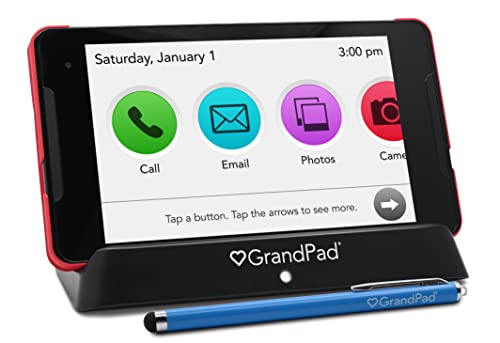 Best for zero-tech seniorsGrandPad Tablet
 Best for no-touch callingViewClix Smart Frame
 Best budget tabletAmazon Fire HD 10 Tablet
 Best for capable seniorsApple iPad
 Best for seniors who won't use a new deviceJubileeTV Smart Streaming & Care Hub
- What to look for
- Frequently asked questions
For most seniors, the Amazon Echo Show 8 is the best video calling device: a spoken name places the call, so there is no app to find and no number to dial. The best video calling device for a senior is the one that requires the least from them.
We may earn a commission when you buy through links on this page. Read our affiliate disclosure.
Top 6 Picks — Find Your Situation
#1 · Best overall
Amazon Echo Show 8Best for: Seniors comfortable with voice commands who want a plug-in-and-forget device
#2 · Best for zero-tech seniors
GrandPad TabletBest for: Seniors with no tech experience and families who want complete remote control
#3 · Best for no-touch calling
ViewClix Smart FrameBest for: Seniors with cognitive decline or severe tech resistance where any button-pressing is a barrier
#4 · Best budget tablet
Amazon Fire HD 10 TabletBest for: Budget-conscious families where the senior has basic tablet comfort
#5 · Best for capable seniors
Apple iPadBest for: Tech-comfortable seniors, especially those already in the Apple ecosystem
#6 · Best for seniors who won't use a new device
JubileeTV Smart Streaming & Care HubBest for: Seniors who watch TV regularly and would resist learning any new device
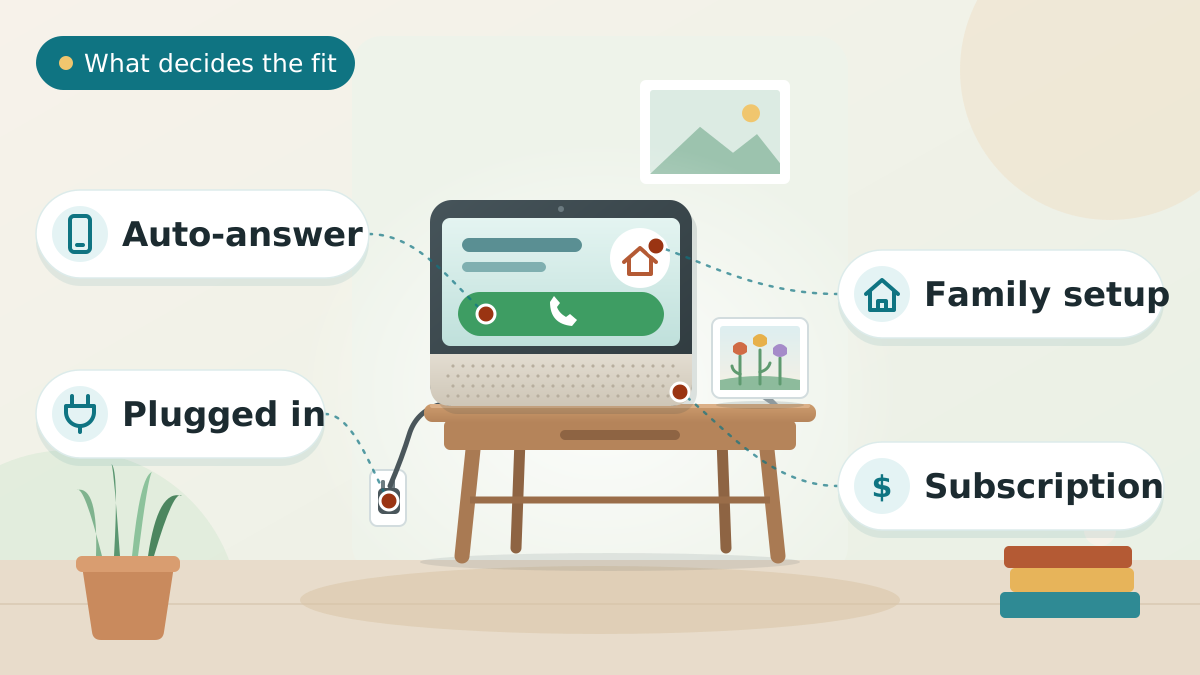
Which device fits your parent?
The right device is the one that asks the least of them. Answer what you know; skip what you don’t.
What each device asks of your parent
| Device | To answer | To call you | Power | Wi-Fi | Monthly fee | Family manages remotely |
|---|---|---|---|---|---|---|
| Amazon Echo Show 8 | Tap Answer or say “Alexa, answer.” Family you allow can Drop In with no answer needed. | Say “Alexa, call [name].” | Plugged in | Yes | No | Alexa app: contacts and Drop In permission |
| GrandPad | Tap the answer button on screen. | Tap Calls, then Video, then the person’s photo. | Battery; sits on a charging cradle | No: built-in 4G LTE | Yes, monthly service plan | Yes: companion app and online portal |
| ViewClix Smart Frame | Nothing: calls auto-answer (family can turn this off). | Cannot call out; a “Call Me” request texts the family. | Plugged in (no battery) | Yes (a mobile hotspot also works) | Yes, membership needed for video calls | Yes: app and member portal |
| Amazon Fire HD 10 | Tap to answer. | Open the Alexa or Zoom app and tap a contact. | Battery; charge every day or two | Yes | No | Limited: set it up in person |
| Apple iPad | Tap (or swipe) to answer FaceTime. | Tap a contact in FaceTime, or ask Siri. | Battery; charge every day or two | Yes (or a cellular model) | No | Limited: set it up in person |
| JubileeTV | Nothing: family calls auto-answer on the TV. | Family starts calls from their phone app. | Plugged in, next to the TV | Yes | Yes, membership | Yes: caregiver app, can fix the TV remotely |
From each maker’s own help pages and listings: ViewClix FAQ, the GrandPad user guide, Lively’s JubileeTV listing, Amazon Alexa and Apple FaceTime help. Checked October 2026. Fees and plans change, so check the current price on each listing.
For most families, the Amazon Echo Show 8 hits the right balance — a voice command starts a call, an 8-inch screen shows who's calling, and it costs nothing beyond the hardware. For a senior who can't reliably answer a call or manage any interface, the ViewClix Smart Frame auto-answers every approved call with zero interaction. For someone who's never used technology, the GrandPad is the most hand-held option, though it carries a monthly subscription. And for a capable senior in an Apple family, an iPad on FaceTime is simply the best video quality available.
A closer look at our top pick
Amazon Echo Show 8
Best for: Seniors comfortable with voice commands who want a plug-in-and-forget device
- Screen
- 8 in HD
- Call start
- Voice command
- Subscription
- None
Independently researched · Updated October 2026
The Echo Show 8 earns the top slot because it solves the most common problem — a senior who would use video calling if it were simple enough — without the complexity of a tablet or the subscription of a dedicated platform. Voice commands replace every navigation step. The auto-framing 13-megapixel camera moves with the person so they do not need to stay perfectly centred.
It stays plugged in, so it is always ready. The Drop In feature lets a family member appear on the screen from the Alexa app — useful for a daily check-in even if the senior does not initiate it.
What we love
- Voice-activated calling — no touchscreen navigation needed
- 13MP auto-framing camera; stays plugged in, no charging
- Family can Drop In from the Alexa app to check on a parent
- No monthly subscription; Amazon ecosystem widely familiar
Things to consider
- Requires correctly saying the wake word and contact name — not suitable for severe cognitive decline
- Calls work best when family also has Alexa-compatible devices or the Alexa app
- Always-on microphone can feel intrusive for some seniors
Right for you if
- ✓Your parent can reliably say a few words to a device
- ✓You want something that stays plugged in and is always ready
- ✓You want a family check-in tool (Drop In) without a subscription
Maybe skip it if
- !Your parent has dementia or severe tech resistance (ViewClix auto-answer is safer)
- !Your parent has never used technology and needs a completely managed solution (GrandPad)
- !Your family is entirely on Apple and already uses FaceTime (iPad is simpler)
What owners consistently report
Common praise
- +Families report the voice command lowers the barrier enough for parents who refused a tablet
- +Drop In is consistently praised for daily check-ins without burdening the parent to answer
- +The auto-framing camera is appreciated — parents do not have to hold the device
Common gripes
- –If the senior mispronounces the contact name, Alexa misroutes the call
- –Always-on microphone is a concern for some families
- –The range of features can confuse seniors who explore beyond calling
Getting started
- →Set up the device yourself first and add contacts before giving it to the senior
- →Enable Drop In for yourself so you can do daily check-ins without the senior needing to answer
- →Put a large-print label near the device: "Say: Alexa, call [name]"
How it compares
If the senior cannot reliably answer a call or navigate any interface, the ViewClix Smart Frame is the better choice — it auto-answers with no interaction from the senior and doubles as a family photo display. Choose the Echo Show when the senior can use voice commands; choose ViewClix when even that is too much.
How we picked
We compared 6 options. Our picks are based on device specifications, senior-care guidance, and verified caregiver reviews — not independent lab testing. We prioritised what matters for a senior who may resist or struggle with technology: how many steps are needed to answer or start a call, how large and readable the screen is, whether the device requires charging or can stay plugged in, whether the family can set it up and manage it remotely, and whether a subscription is required. Note: Meta Portal was excluded because it was discontinued for sale in 2022 and its Alexa and “Hey Portal” voice control were switched off in January 2025 and apps such as Zoom have gone. Do not buy a Meta Portal in 2026.
Reviewed by Kutubuddin — who researches senior-care products and the real-world needs of caregivers and older adults.
Other picks, reviewed
GrandPad Tablet
The GrandPad is the most completely handed-off solution for a senior who has never used technology and never will. It ships pre-configured with approved contacts only, requires no passwords, no app stores, and no Wi-Fi setup — it has its own built-in 4G LTE connection. Family manages everything remotely from their own phone, including who can call, what apps appear, and troubleshooting. The interface is a handful of giant tiles. There is no way to accidentally stumble into settings or accidentally call a stranger. The trade-off is a monthly subscription (which includes the cellular data and 24/7 tech support). Worth it when the alternative is the senior simply not connecting at all.
What we like
- Built-in 4G LTE — no Wi-Fi setup required
- Pre-configured by family; no passwords, no app store
- Approved-contacts-only calling; 24/7 tech support included
- Family manages everything remotely from their own phone
Keep in mind
- Monthly subscription adds up over time
- Less flexible than a standard tablet once the senior is comfortable
- The senior cannot independently add contacts or explore features
- Connectivity
- 4G LTE built-in (no Wi-Fi needed)
- Setup
- Family-managed remotely
- Subscription
- Monthly plan (4G data + support)
ViewClix Smart Frame
The ViewClix solves a problem the other devices don’t: what if the senior cannot reliably answer a call at all? It looks like a digital photo frame on the kitchen counter, scrolling through family photos. When a family member calls from the ViewClix app, the frame rings — and then auto-answers automatically. The senior does not press anything; the call appears. When the call ends, the frame goes back to the slideshow. There is no interface to learn, no button to press, no app to open. Family members send new photos, sticky-note reminders, and weather updates entirely from their own phones. Available in 10.1-inch and 15.6-inch sizes; a monthly membership is required. The right pick when any interaction is too much.
What we like
- Auto-answers calls — zero interaction required from the senior
- Displays family photos as a slideshow between calls
- Family manages everything remotely; sticky-note reminders included
- Modest monthly subscription; designed for dementia and severe tech resistance
Keep in mind
- The senior cannot start a call (a “Call Me” request texts the family instead)
- Requires Wi-Fi; small monthly subscription
- Less versatile than a smart display or tablet
- Screen
- 10.1 in or 15.6 in
- Call answer
- Auto-answers by default
- Subscription
- Monthly, needed for video calls
Amazon Fire HD 10 Tablet
The best value option when a senior wants a tablet they can also use for photos, games, or streaming. The Fire HD 10 has a 10-inch 1080p screen, works with the Alexa app for voice calling, and supports Zoom for calls with family who aren’t in the Amazon ecosystem. It does not require a subscription and costs significantly less than an iPad. The trade-off is that it needs charging every day or two, the Fire OS interface requires a bit more navigation than a dedicated device, and it is not as polished as the iPad for FaceTime. Best when the senior is comfortable enough with tablets to navigate a home screen independently.
What we like
- 10-inch 1080p screen; voice calling via Alexa
- Supports Zoom and other apps; no subscription
- Much less expensive than an iPad
- Portable; can be used around the house
Keep in mind
- Needs daily or every-other-day charging
- Fire OS requires navigation; not as simple as dedicated devices
- Amazon app ecosystem is more limited than Android or iOS
- Screen
- 10 in 1080p
- Apps
- Alexa, Zoom, other apps
- Subscription
- None required
Apple iPad
For a senior who is comfortable with technology — or who has used an iPhone — the iPad is the best video quality available. FaceTime is built in, requires no account setup beyond an Apple ID, and connects seamlessly to every iPhone and Mac in the family. The screen is large and high-resolution, the camera is excellent, and the interface is consistent with the iPhone the senior may already use. It also runs Zoom, WhatsApp, and any other app the family prefers. The limitations are price, daily charging, and the fact that it rewards existing familiarity with Apple devices — a senior who has never used one will find the learning curve steeper than a dedicated device.
What we like
- FaceTime provides the best video quality with zero extra setup
- Seamlessly connects to every iPhone and Mac in the family
- Large, high-resolution screen; excellent camera
- Supports any app: Zoom, WhatsApp, and more
Keep in mind
- Most expensive option
- Requires daily charging and Apple ID management
- Steeper learning curve for seniors who have never used an Apple device
- Screen
- 11 in (A16 model)
- Call app
- FaceTime built-in
- Subscription
- None
JubileeTV Smart Streaming & Care Hub
JubileeTV solves a different problem than the other five picks: what if introducing any new device is itself the barrier? It connects to a TV the senior already watches every day, through a source device they already use (cable box, Roku, or similar) -- no tablet, no smart display, nothing new to learn. Family controls it entirely from their own phone: starting a video call straight to the TV, fixing a stuck cable box remotely, sending photos that appear on screen, and getting alerts on TV usage or when someone enters the room. It is sold through Lively, part of Best Buy Health and the name behind the Lively medical alert line, and family calls auto-answer on the TV. The trade-off is real: it requires an ongoing paid membership on top of the hardware, and it needs a separate source device if the senior's TV is a smart TV with no cable box, Roku, or similar already connected -- check that before buying. Worth knowing before you order: check the delivery estimate on the Amazon listing, as dispatch times for this item can vary.
What we like
- No new device for the senior to learn -- everything happens on the TV they already use
- Family can fix TV/streaming issues remotely from their own phone
- Direct-to-TV video calling plus one-way "Drop In" style check-ins
- Family video calls auto-answer on the TV -- nothing for the senior to press
Keep in mind
- Requires an ongoing paid membership on top of the hardware cost
- Does not work with a smart TV's own built-in apps -- needs a separate cable box, Roku, or similar streaming source device connected
- Requires home Wi-Fi, unlike the GrandPad
- Connects via
- HDMI, to an existing TV
- Requires
- A source device (cable box, Roku, etc.) + home Wi-Fi
- Subscription
- Required (monthly, annual, or one-time membership options)
What to look for
Match the device to the tech comfort level
This is the single decision that matters most:
- Never used technology: GrandPad (family configures everything) or ViewClix (no interaction required).
- Familiar with voice commands: Amazon Echo Show 8 (say the name, it calls).
- Comfortable with a tablet but not an expert: Amazon Fire HD 10 (affordable, simple enough).
- Already uses an iPhone or was a tech professional: Apple iPad (best quality, most flexible).
- Watches TV regularly and would resist any new device entirely: JubileeTV (calls happen on the TV they already use).
A device that is too complicated will be pushed aside after the first week, which defeats the entire purpose.
Plugged-in devices beat tablets for reliability
The most common failure mode for senior video calling is a dead battery. A smart display or video frame that stays plugged in — like the Echo Show or ViewClix — is always ready to receive a call. Tablets need charging every day or two, and a forgotten charger means an unreachable senior. If reliability is the priority, a plug-in device wins regardless of features.
Subscriptions: what you are actually paying for
Three of the six picks have no subscription. Three do:
- GrandPad (monthly subscription): covers the 4G LTE cellular data, device management platform, and 24/7 tech support. If the senior has no home Wi-Fi or the family cannot help with tech issues, that support is genuinely valuable.
- ViewClix (monthly subscription): covers the cloud platform that manages photo sharing, call routing, and remote management. For what it delivers, this is a low cost.
- JubileeTV: requires an ongoing membership (monthly, annual, or one-time options) on top of the hardware -- check current pricing on the listing before buying, as membership options can change.
Factor both into the total cost over a year before comparing with no-subscription devices.
Do not buy a Meta Portal in 2026
Meta stopped selling Portal to consumers in 2022. Its Alexa and “Hey Portal” voice control were switched off on 31 January 2025, and apps such as Zoom and the music services have gone too. Basic Messenger and WhatsApp calls still worked in 2025, but the device has lost the hands-free features that made it useful for seniors. ViewClix is the current equivalent — a purpose-built auto-answer frame that is actively developed and supported.
Tips to Choose Video Calling Devices
Short on time? Here are the key points to weigh before choosing, each covered in detail above:
- Match the device to the tech comfort level
- Plugged-in devices beat tablets for reliability
- Subscriptions: what you are actually paying for
- Do not buy a Meta Portal in 2026
Comparing options? See our guides to Best Large Button Phones for Seniors, Best Tablets for Elderly with Poor Vision, and Best Hearing Aids for Elderly.
Setting it up so it actually gets used
Buying the right device is step one. Step two is the setup that makes it stick. A few things that consistently help:
- Set up the device before giving it — create the account, add the contacts, do a test call, before it lands in the senior’s hands.
- Write down one instruction card with the single step they need. "Say Alexa, call [name]" on a card taped near the device is enough for an Echo Show.
- Make the first few calls together rather than over the phone. Seeing it work builds confidence.
- Enable auto-answer for the most important caller (usually a primary caregiver) so the senior does not need to do anything at all for that person to check in.
Expect to answer the same question multiple times over the first few weeks. That is normal and worth the patience.
Video calling and social connection for isolated seniors
Many adults over 65 are socially isolated, and the National Institute on Aging links isolation to higher risks of cognitive decline, depression, and cardiovascular disease. A daily video call is not just a convenience — for a homebound or nursing-home senior it is often the main social interaction of the day. Any device on this list, set up correctly, can provide that. For seniors who pair video calling with reminder and monitoring tools, see our best elderly monitoring systems guide and our best medical alert devices for seniors guide.
Frequently asked questions
Start with what your parent can do, not with the features. If they cannot reliably tap a button to answer, choose a device that auto-answers (ViewClix or JubileeTV) or an Echo Show with Drop In for family. If there is no Wi-Fi, the GrandPad is the only pick with its own 4G connection. If a monthly fee is not possible, the Echo Show, Fire HD 10 and iPad have none. The “Which device fits your parent?” tool at the top of this page walks through these questions.
The easiest for a tech-comfortable senior is the Amazon Echo Show — say the name, it calls. For a senior who cannot manage any interface, the ViewClix Smart Frame auto-answers calls without any button press. For a senior with no tech experience at all, the GrandPad is the most completely managed option, though it carries a monthly subscription.
Yes, with the right device. A standard tablet or smart display requires too much navigation for most people with moderate-to-severe dementia. The ViewClix Smart Frame is designed for this situation: it auto-answers every approved call without the senior touching anything, shows family photos between calls, and is entirely managed by family remotely. The GrandPad is also designed for this population.
No — Meta stopped selling Portal in 2022 and has removed most of its features since then. Its voice control and Alexa were switched off in January 2025, and apps such as Zoom have gone. ViewClix is the current equivalent: a purpose-built auto-answer video frame that is actively supported, with a one-time device cost plus a monthly membership.
Not all of them. The Amazon Echo Show 8, Fire HD 10, and iPad require no subscription for video calling. The GrandPad requires a monthly subscription (which includes built-in 4G LTE and 24/7 tech support), and ViewClix requires a monthly subscription for its cloud platform. Factor the monthly cost into your comparison over a full year.
The GrandPad is the only pick that includes its own 4G LTE cellular connection, so it works without home Wi-Fi. Every other device on this list requires Wi-Fi. If Wi-Fi is available but unreliable, the GrandPad also avoids the setup frustrations that come with Wi-Fi troubleshooting.
Yes, for most picks. The GrandPad and ViewClix are the most comprehensive — family manages all contacts, settings, and content from their own phone, and the senior does not need to do any configuration. Echo Show can be managed through the Alexa app (adding contacts, adjusting settings, Drop In). The iPad and Fire HD require more hands-on setup with the senior.
FaceTime is simpler for seniors who already have an Apple ID and family on Apple devices — it is built into the iPad and iPhone with no extra account needed. Zoom is better when the family is on mixed devices (Android, PC, Mac) or when the senior needs to join group calls that include non-Apple users. Either works on an iPad; Zoom also works on the Fire HD 10.
For a smart display on a counter, an 8–10 inch screen at arm’s length is comfortable. For a dedicated video frame, the ViewClix 15.6-inch is excellent. For tablets held in the hand, a 10-inch screen is the practical sweet spot between readability and weight. Smaller screens (6–7 inches) are harder to see for seniors with vision loss.
Set up the device fully before giving it, including a test call. Add contacts yourself. Write a one-step instruction card ("Say: Alexa, call [name]") and tape it near the device. Make the first calls together in person. Enable auto-answer for yourself so you can check in without relying on the senior to answer. Expect to answer the same questions multiple times in the first few weeks — that is normal.
Yes, with the right device. The ViewClix Smart Frame auto-answers every incoming call from an approved contact with no interaction from the senior — the call simply appears on the screen. JubileeTV does the same on the TV. The Amazon Echo Show lets family members you approve Drop In, so the call connects without anyone answering. The GrandPad rings and displays a large button, but the senior must press it.
Yes — JubileeTV connects to a TV the senior already watches, through a source device they already use (cable box, Roku, or similar), so there is nothing new to learn. Family controls everything from their own phone: starting video calls, fixing TV issues remotely, and sending photos to the screen. It requires an ongoing paid membership, and it will not work if the senior's TV is a smart TV with no separate cable box or streaming device already connected — check that first.
The final verdict
For most families, start with the Amazon Echo Show 8 — it requires no subscription, voice-activates calls, and stays ready on the counter. If the senior cannot reliably answer a call or use any interface, the ViewClix auto-answer frame is the better fit. If they have never used any technology and the family wants complete control, the GrandPad is worth its subscription. For a capable senior with budget flexibility, an iPad is the best quality. And whatever you choose, do not buy a Meta Portal in 2026 — it has lost the features that made it useful.
Our overall winner is the Amazon Echo Show 8. You can check the current price on Amazon.
Our Top 5 Picks at a Glance
Ready to choose? Here are the top 5 again.
Best overall
Amazon Echo Show 8
Best for zero-tech seniors
GrandPad Tablet
Best for no-touch calling
ViewClix Smart Frame
Best budget tablet
Amazon Fire HD 10 Tablet
Best for capable seniors
Apple iPad
Affiliate links — we may earn a commission.
